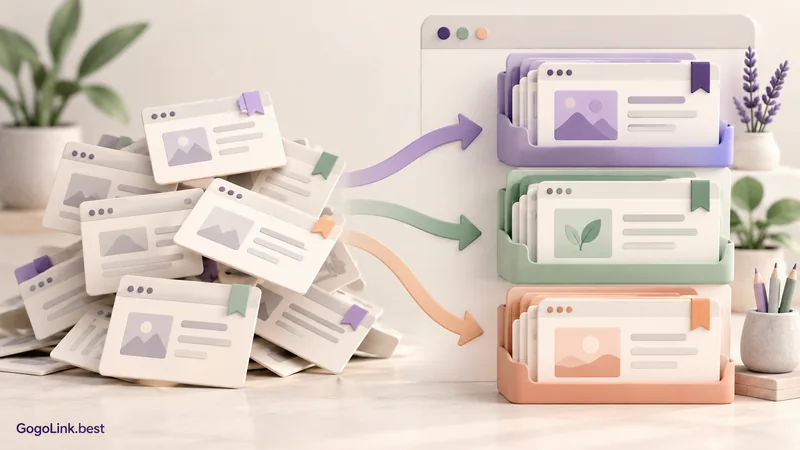
Sometimes the tab bar becomes our to-do list: an article to read, a product to compare and a document we are afraid of losing. The trouble is that all these things look much the same. To bring some order to them, give each kind of link a suitable place.
Sort first, close later
Choose one window and consider the purpose of each tab. Do you need it for the task you are doing now? Is it something to read later? Or is it a regular link worth saving? Sorting this way makes decisions easier without making closing a page feel like losing it.
Do not close a document with unsaved changes, a half-completed form or a process that is still running. Check those pages first and make sure your work is saved in the right place. You can then deal more easily with information pages, search results and duplicate links.
Group tabs by task, not by the whole internet
In Chrome on a computer, right-click a tab to add it to a new or existing group. You can give the group a name and colour. Instead of a broad group called Work, try a specific task: comparing computers, planning a trip or preparing a lesson.
A useful group should explain why the pages belong together. When the task is finished, decide which sources are worth saving and close what you no longer need. If a group keeps growing without serving a particular decision, it may have become a storage cupboard that needs splitting up.
Bookmark the things you want to find again
A bookmark suits a page you return to, such as a regular service, a useful guide or a work resource. In Chrome, save a page using the bookmark icon beside the address bar and organize bookmarks into folders. Give the link a name that describes its use instead of automatically accepting the website's long title.
Simple folders such as Regular services, Study resources and Read later are usually easier to navigate than a deep tree of subfolders. Choose a small set of categories that works for you. The test is whether you will know where to look tomorrow without remembering exactly when you saved the link.
Reading for later needs a manageable queue
If you save twenty articles for later, decide when you will return to them too. Set aside a regular time to review the list, read one item and remove things that no longer interest you. Saving a link is not a commitment to read it, and you are allowed to change your priorities.
Sometimes a short question beside the link is enough: what solution am I looking for here? It helps you decide whether the article is still relevant. It also stops you returning to the same piece three times without remembering why you opened it in the first place.
End the day with a starting point for tomorrow
Before closing your browser, write down the next step in your active task and save the links it needs. Open tabs alone do not explain what you have already checked or what is still missing. A sentence such as Compare the warranties on the two remaining models gives your next session a clearer starting point.
Saving and syncing behaviour varies with your browser and settings. In Chrome, for example, deleting a tab group can also affect other devices connected to the same account. Check what the action does before deleting an important group. Start with just one window today: a little order you can maintain is more useful than a perfect system you never revisit.
A tab is a temporary workspace. A bookmark is a way back to a page. A task also needs a description of the next step.
Sources and useful links
- Chrome: manage tabs on a computer (Opens in a new tab)
- Chrome: create and organize bookmarks (Opens in a new tab)
Links and documentation were checked before publication. Interfaces and features may change. The article images are illustrations, not screenshots of the services.